
Last updated: April 2026
Navigating the 3D viewport in VRoid Studio is something you’ll do constantly while editing your avatar. Whether you’re checking how your hair looks from the side or inspecting a texture up close, knowing how to control the camera makes the whole process faster and less frustrating. This guide covers every camera control available in VRoid Studio.
The Basics: Rotate, Pan, and Zoom
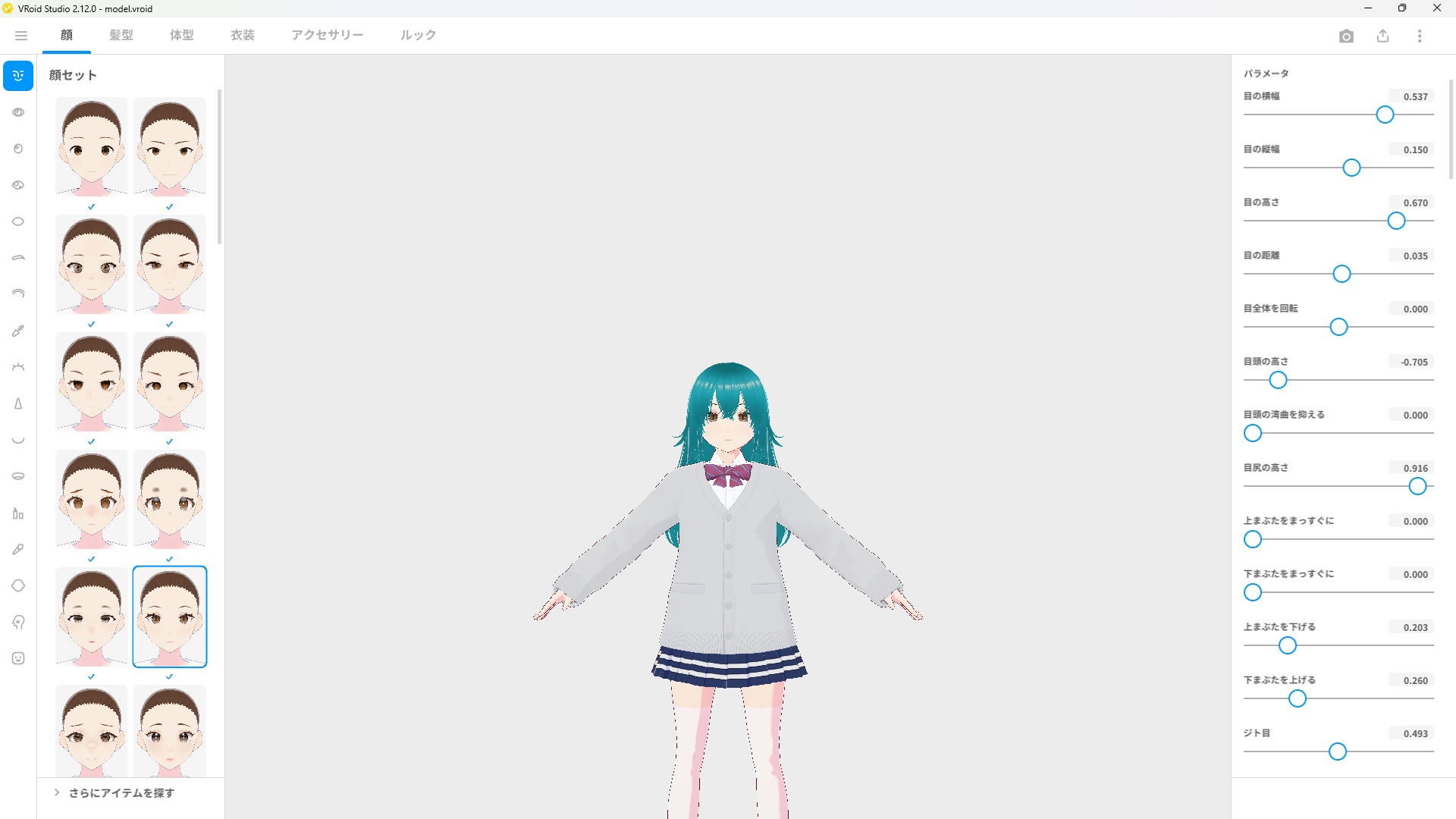
These three controls are the foundation of camera navigation in VRoid Studio. You’ll use them in every editing session.
| Action | How to Do It |
|---|---|
| Rotate | Right-click + drag |
| Pan (move sideways) | Shift + left-click + drag, or Space + left-click + drag |
| Zoom in / out | Mouse wheel, or Ctrl + + / Ctrl + - |
Tip: On a Mac trackpad, you can rotate the camera by pressing two fingers continuously and moving them around to change the camera angle.
Camera Angle Presets (Number Keys)
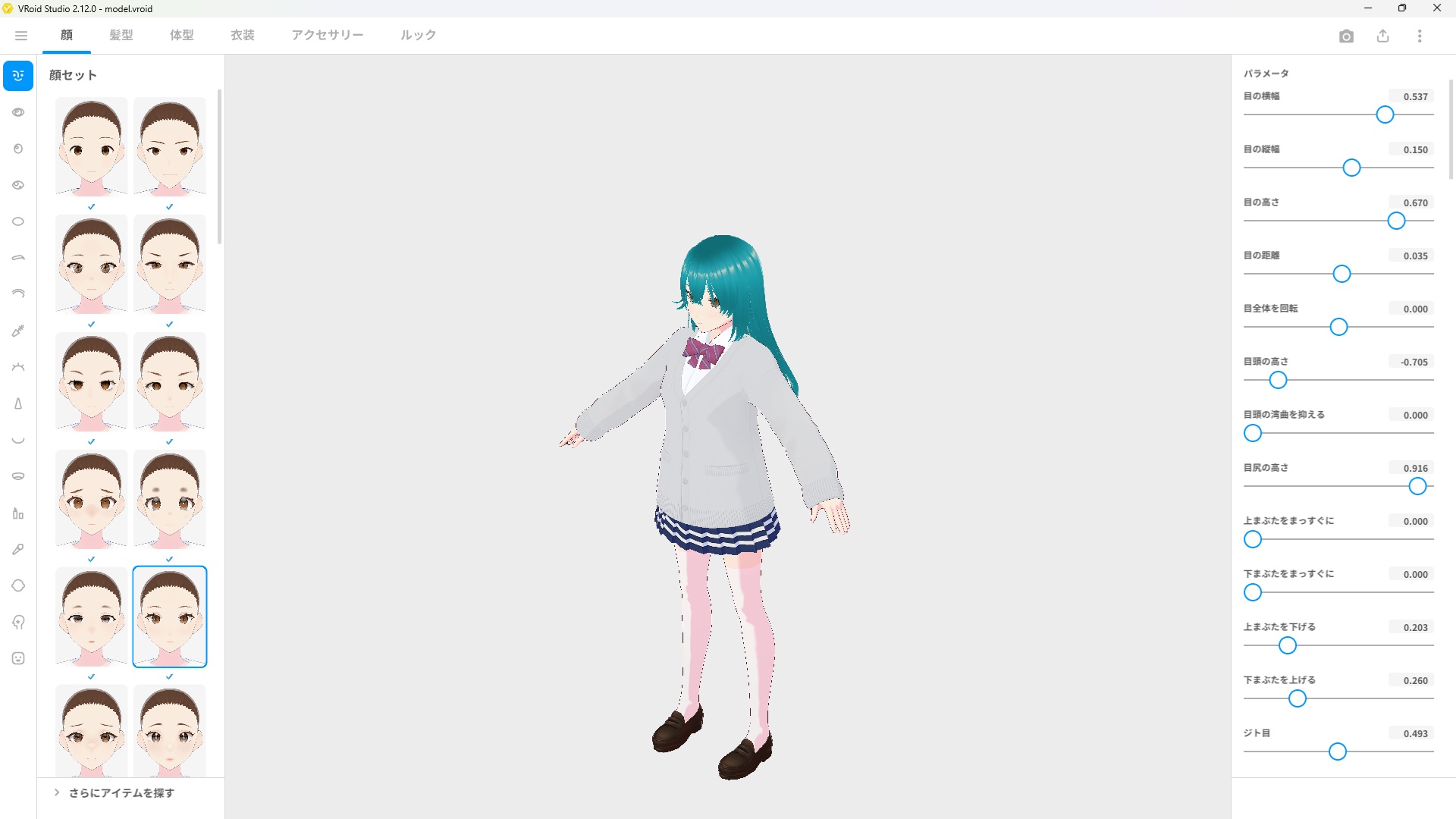
VRoid Studio includes a set of number key shortcuts that instantly snap the camera to a fixed position. These are especially useful when you need to compare the left and right sides of your avatar, or quickly return to the front view after rotating around.
| Key | Camera Position |
|---|---|
1 |
Front view |
2 |
Tilt 15° downward |
3 |
Front-right view |
4 |
Rotate 15° to the left |
5 |
Toggle perspective / parallel projection |
6 |
Rotate 15° to the right |
7 |
Move straight up |
8 |
Tilt 15° upward |
9 |
Invert camera direction |
Tip: Press
1any time you lose track of where the camera is — it snaps straight back to the front view instantly.
Perspective vs. Parallel Projection
Pressing 5 toggles between two projection modes:
- Perspective projection (default) — Objects further away appear smaller, just like in real life. This is the best mode for general editing and getting a natural sense of how your avatar looks.
- Parallel projection — Objects stay the same size regardless of distance. This is useful when you need to check precise symmetry, alignment, or proportions without the distortion of perspective.
Frequently Asked Questions
How do I reset the camera to the default position?
Press 1 on your keyboard to snap the camera back to the front view. This is the quickest way to reset your viewpoint if you’ve rotated too far.
Can I use the camera controls while editing hair or textures?
Yes. Camera controls work in all editor tabs — Face, Hair, Body, Clothing, and others. You can rotate and zoom freely while making adjustments in any panel.
Do the number key shortcuts require a numpad?
No. The camera angle shortcuts use the regular number keys at the top of your keyboard, not the numpad. They work on any standard keyboard, including laptop keyboards.
Is there a way to save a custom camera position?
No. VRoid Studio does not currently support saving custom camera positions. You can only use the built-in angle presets via the number keys.
What’s Next?
Now that you can navigate the 3D viewport confidently, here are some good next steps:
- [How to Edit Face Shape in VRoid Studio] — Start customizing your avatar’s appearance
- [VRoid Studio Keyboard Shortcuts Complete List] — All shortcuts in one place, including camera controls
Final Thoughts
Camera navigation in VRoid Studio is straightforward once you get used to right-clicking to rotate and scrolling to zoom. The number key presets are worth learning too — pressing 1 to snap back to front view becomes second nature very quickly, especially when you’re deep into editing and need a quick reference point.