
Last updated: April 2026
One of the most powerful features in VRoid Studio is the ability to reshape your avatar’s face using sliders. Whether you want a sharp jawline, wide eyes, or a soft round face, you can achieve it all without any 3D modeling experience. This guide walks you through every major face editing option available in the Face editor.
How to Open the Face Editor
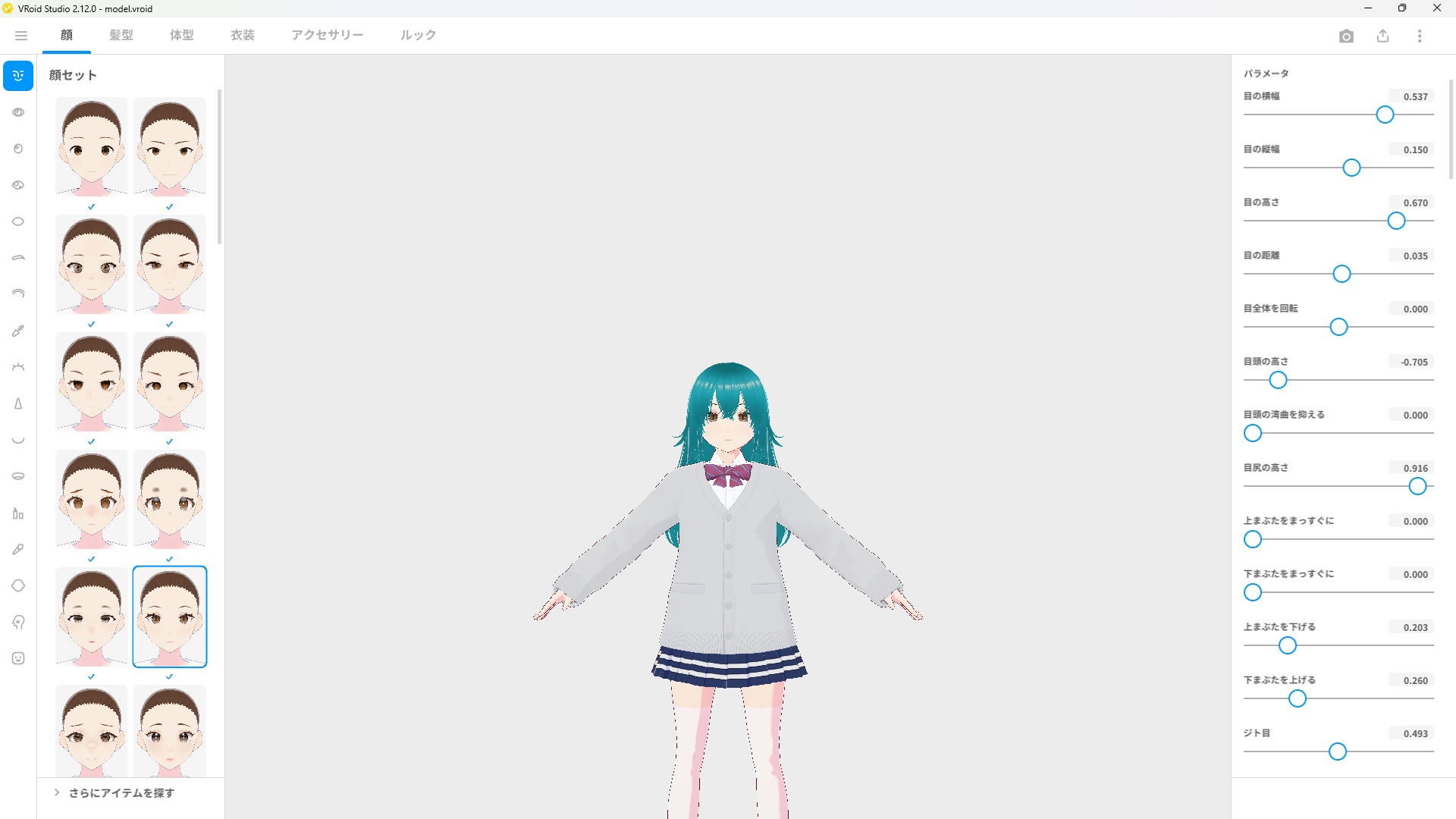
Click the Face tab at the top of the screen to open the face editor. The 3D viewport on the left shows your avatar in real time, while the panel on the right contains all the sliders for adjusting face shape.
Understanding the Sliders
The right-hand panel contains sliders grouped by facial feature. Each slider controls a specific aspect of the face shape — drag it left or right to see the change reflected on your avatar in real time.
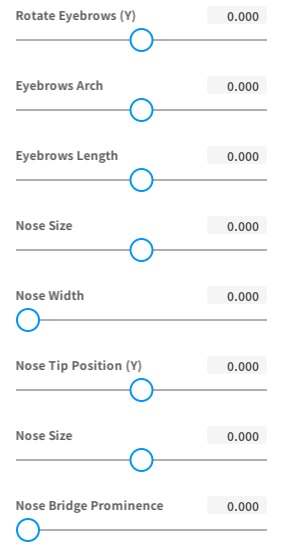
The main categories of face sliders include:
| Category | What You Can Adjust |
|---|---|
| Face Outline | Overall face width, jawline shape, chin length and sharpness |
| Eyes | Eye size, spacing, angle, and vertical position |
| Nose | Nose height, width, and overall size |
| Mouth | Mouth width, lip thickness, and vertical position |
| Ears | Ear size and position |
| Eyebrows | Eyebrow height, angle, and spacing |
Tip: Use
Ctrl + Z(Windows) orCmd + Z(Mac) to undo any slider change instantly. Don’t be afraid to experiment — you can always go back.
Editing the Face Shape Step by Step
Step 1: Start with the Face Outline
Begin with the overall face shape before moving to individual features. Adjusting the face width and jawline first gives you a solid foundation to work from. A wider jaw creates a rounder, softer look, while a narrower jaw gives a sharper, more angular appearance.
Step 2: Adjust the Eyes
Eyes have the biggest impact on your avatar’s personality. Larger eyes give an anime-style look, while smaller eyes feel more realistic. You can also adjust the angle — slightly upward-angled eyes feel energetic, while downward-angled eyes feel gentle.
Step 3: Fine-tune the Nose and Mouth
The nose and mouth are often dialed back in anime-style avatars. A smaller, less prominent nose and a slightly wider mouth tend to look natural for VTuber-style characters. Adjust these last, once the major proportions are in place.
Step 4: Check from Multiple Angles
Use the camera controls to rotate around your avatar and inspect the face from the side and at different angles. Some changes that look great from the front can look off from the side.
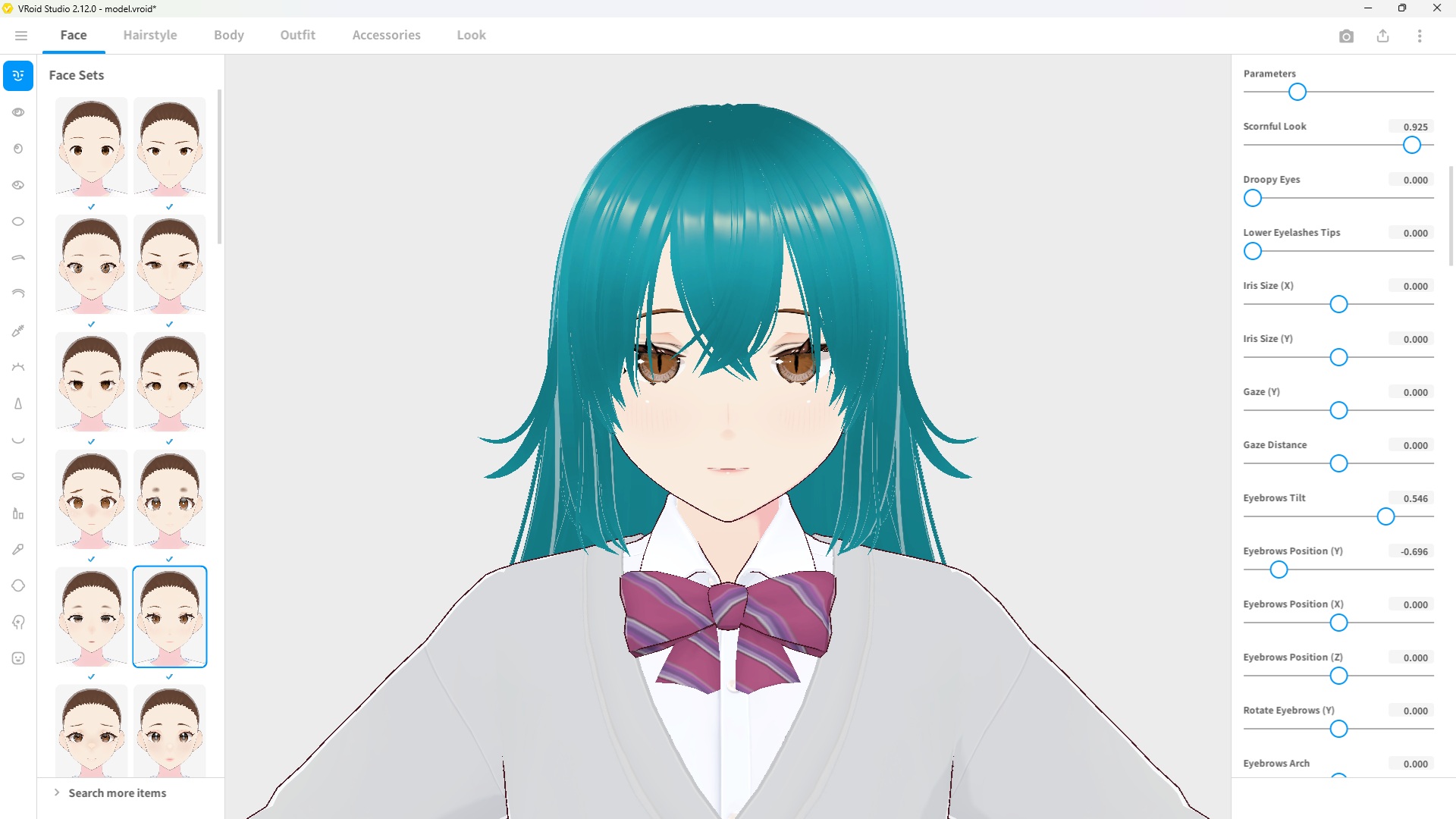
Tip: Press
1on your keyboard to snap the camera back to the front view at any time, and right-click drag to rotate to a side view.
Tips for a Natural-Looking Face
- Make small adjustments. Large slider changes can quickly look exaggerated. Subtle tweaks add up to a natural result.
- Check symmetry. VRoid Studio applies face edits symmetrically by default, so both sides will match automatically.
- Use the front and side views. Always check your avatar from multiple angles before finalizing your face shape.
- Save regularly. VRoid Studio has no auto-save, so save with
Ctrl + Safter you’re happy with each section.
Frequently Asked Questions
Can I reset all face sliders back to default?
Yes. You can right-click individual sliders to reset them to their default value. If you want to start completely from scratch, you can also load a fresh sample avatar from the home screen.
Are face edits applied symmetrically?
Yes. VRoid Studio applies all face shape adjustments symmetrically by default. You cannot independently adjust the left and right sides of the face using the sliders.
Can I mix face shapes from different presets?
VRoid Studio does not have a preset mixing feature for face shapes. However, you can start from any sample avatar and manually adjust the sliders from there to achieve your desired look.
Do face edits affect the hairstyle or clothing?
No. Face shape edits only affect the head and facial structure. Hair, clothing, and body proportions are edited separately in their respective tabs.
What’s Next?
Now that your avatar’s face is taking shape, here are some good next steps:
- [How to Change Eye Color & Style in VRoid Studio] — Customize your avatar’s eyes in detail
- [How to Draw Custom Eyebrows in VRoid Studio] — Go beyond the default eyebrow options
Final Thoughts
The face editor in VRoid Studio is surprisingly flexible for a tool that requires no 3D modeling experience. The key is to work from the big picture down — start with the overall face shape, then move to eyes, and finish with the smaller details. Take your time, check from multiple angles, and don’t forget to save as you go.