
Last updated: April 2026
VRoid Studio gives you full control over your avatar’s skin color and texture — from natural tones to fantasy colors like blue, green, or purple. This guide walks you through every skin customization option, whether you want a subtle tweak or a completely non-human look.
How to Open the Skin Color Settings
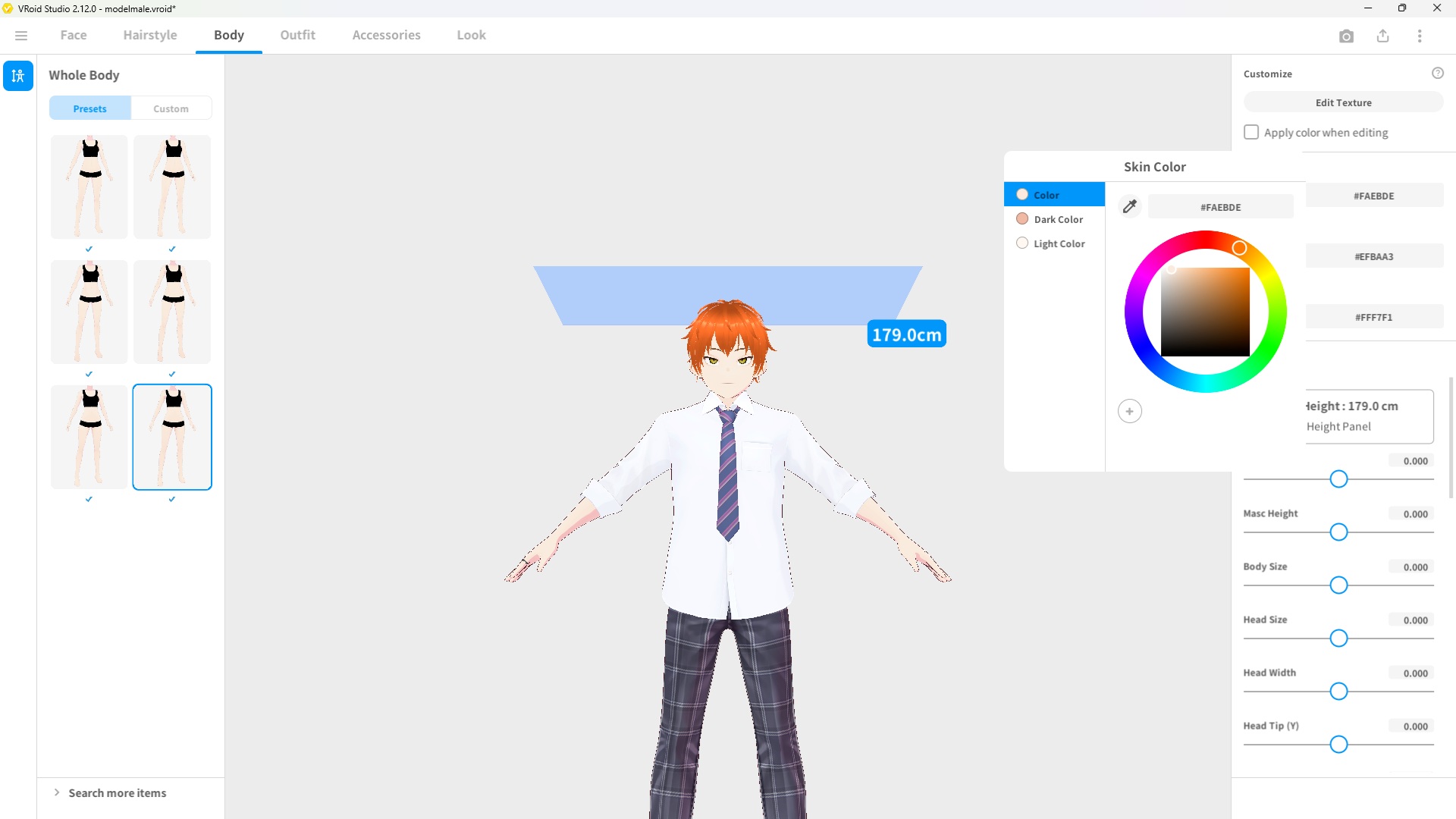
Click the Body tab at the top of the screen, then select Skin from the left panel. The right-hand panel will show the color and texture settings for your avatar’s skin.
Changing the Skin Color
The color picker lets you set any skin color you want. Click the color swatch to open the picker, then either drag the selector or enter a hex code directly.
| Setting | What It Does |
|---|---|
| Color | Sets the base skin color. Works with any color — natural tones, fantasy colors, or anything in between. |
| Highlight Color | Controls the color of light reflections on the skin. Lightening this adds a subtle glow effect. |
| Shadow Color | Controls the color of shadows on the skin. Darkening this adds more depth and contrast. |
Tip: For fantasy skin colors like blue or green, try adjusting the highlight and shadow colors to match the hue rather than leaving them at the default. This makes the color look more cohesive and less flat.
Editing the Skin Texture (Advanced)
For deeper customization, click Edit Texture to open the Texture Editor. Here you can paint directly onto the skin texture, add details like freckles, blush, or markings, and adjust layer opacity.
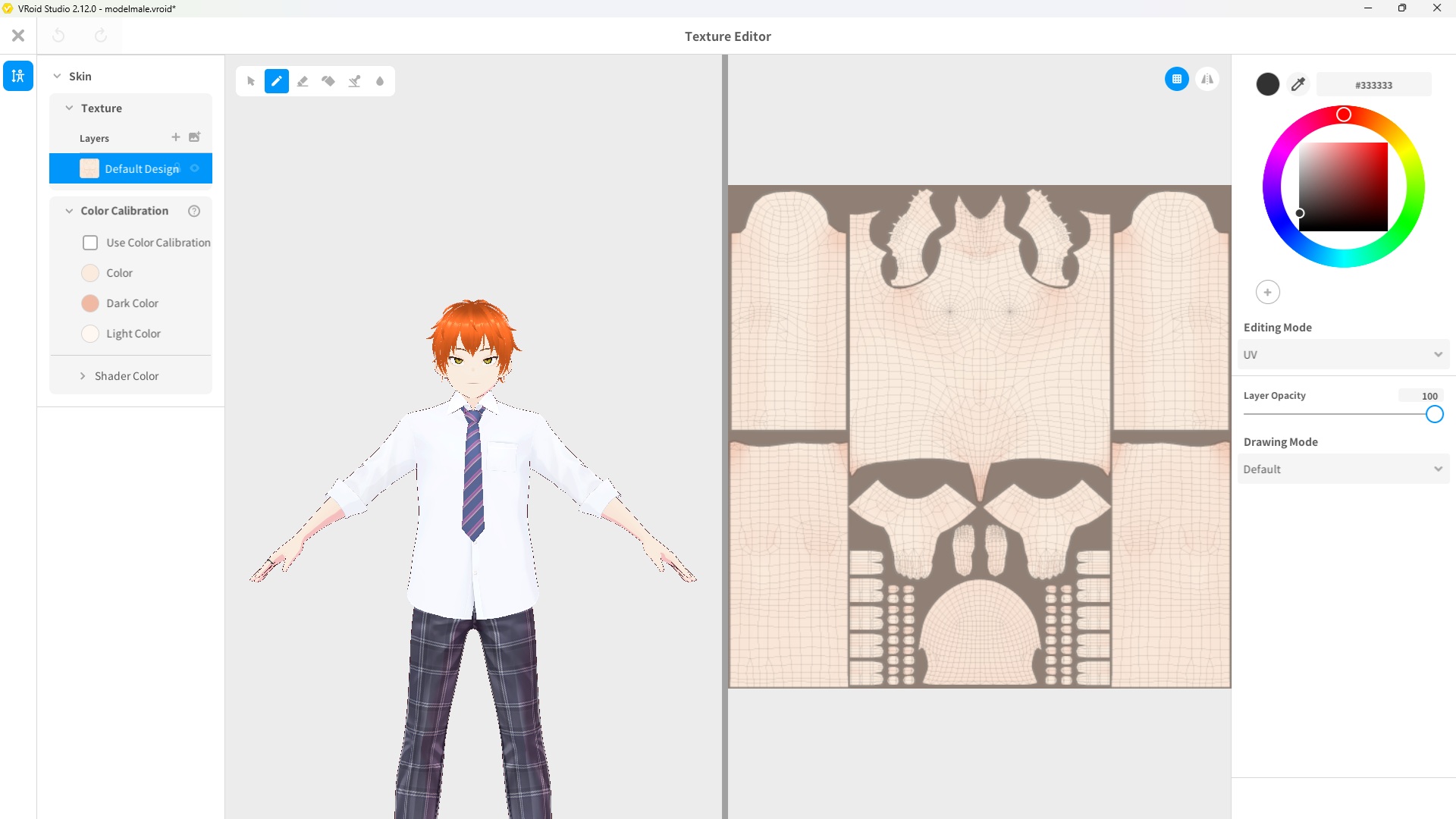
The Texture Editor splits the screen into:
- Left panel (3D preview) — Shows your avatar with changes applied in real time.
- Right panel (UV map) — Shows the flat skin texture where you can draw directly.
Useful things you can do in the Texture Editor:
| Technique | How to Do It |
|---|---|
| Add blush / cheek color | Paint a soft pink or peach tone over the cheek area on the UV map using a low-opacity brush. |
| Add freckles or markings | Use a small brush to dot or draw custom patterns onto the face or body texture. |
| Import a custom texture | Add a new layer and import an image file to use as a custom skin texture overlay. |
Example: Changing to a Fantasy Skin Color
VRoid Studio supports any skin color — not just natural tones. Fantasy colors like green, teal, or lavender are popular in the VTuber and VRChat communities. The example below shows the default skin color on the left, and a custom green tone on the right.
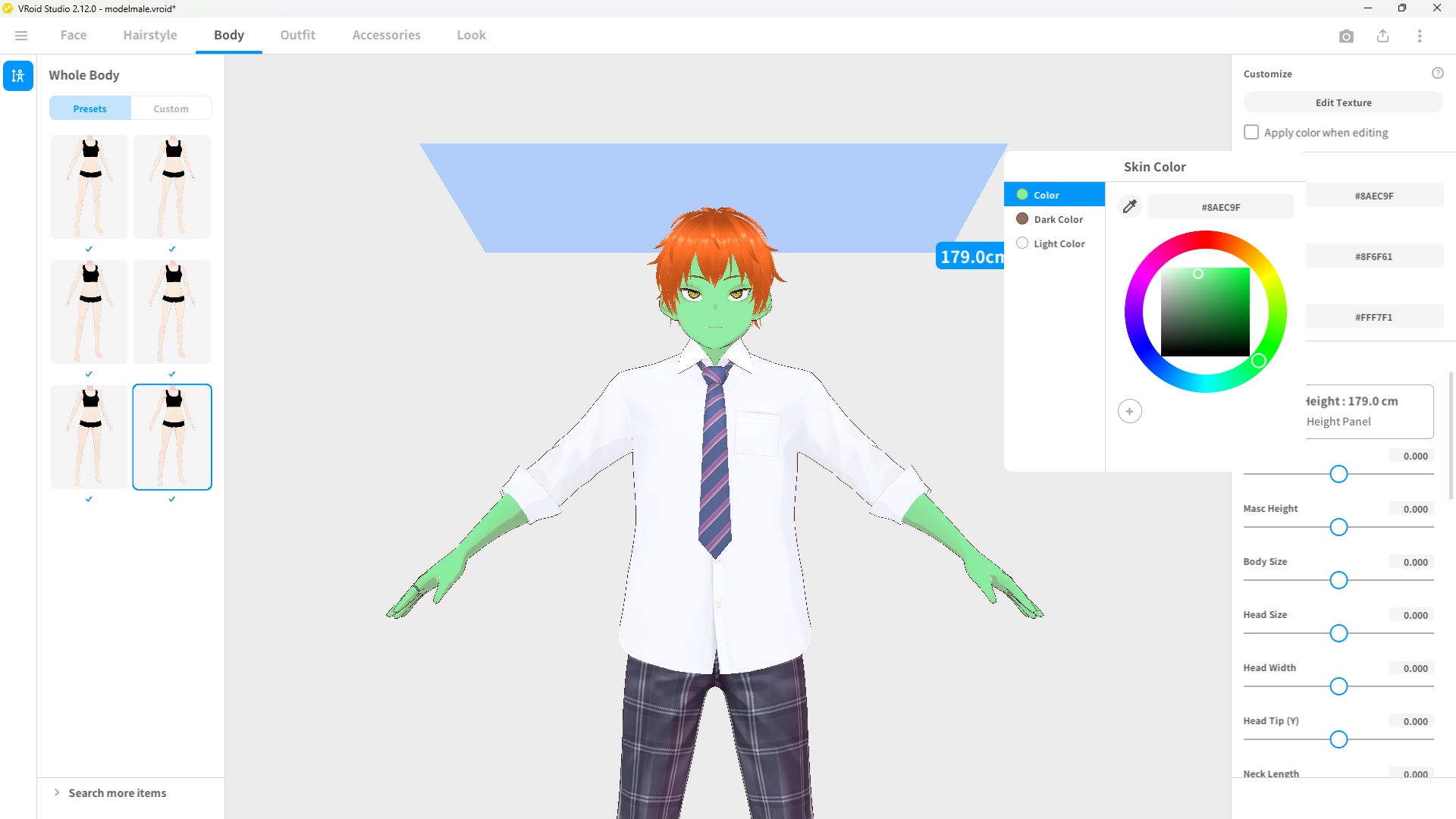
Note: The green skin color shown here is just one example. You can set any color you like — the process is exactly the same regardless of which color you choose.
Frequently Asked Questions
Can I set different skin colors for different body parts?
VRoid Studio applies the skin color globally across the whole body. To create different tones on specific areas, you would need to paint those differences directly onto the skin texture in the Texture Editor.
Will my custom skin color show up in VRChat?
Yes. Skin color and texture settings are included when you export your avatar as a VRM file. They will appear correctly in VRChat and other VRM-compatible apps.
Can I use a photo as a skin texture?
You can import any image file as a texture layer in the Texture Editor. However, photo-realistic skin textures tend to look out of place on the anime-style VRoid mesh, so results will vary depending on the image.
How do I reset the skin color back to default?
You can reset the skin color in two ways. The quickest method is to press Ctrl + Z (Windows) or Cmd + Z (Mac) to undo your changes one step at a time. Alternatively, click the color swatch to open the color picker and manually enter the default hex value to restore the original tone.
What’s Next?
- [How to Add & Edit Facial Expressions in VRoid Studio] — Bring your avatar’s face to life
- [How to Edit Clothing Textures in VRoid Studio] — Customize your avatar’s outfit to match the skin style
Final Thoughts
Changing skin color in VRoid Studio takes just a few clicks, but the results can completely transform your avatar’s look. Whether you’re going for a realistic human tone or a bold fantasy color, the color picker and texture editor give you everything you need. Don’t be afraid to experiment — use Ctrl + Z to undo any changes instantly.