
Last updated: April 2026
VRoid Studio is often associated with feminine anime-style avatars, but it’s fully capable of creating convincing male characters too. The key is knowing which settings to adjust and in what direction. This guide walks you through the entire process of creating a male avatar from scratch.
Step 1: Choose a Base Model
When creating a new project, VRoid Studio lets you choose a base model to start from. Select the male base to begin with proportions that are already closer to a masculine build — broader shoulders, a flatter chest, and a taller overall frame.
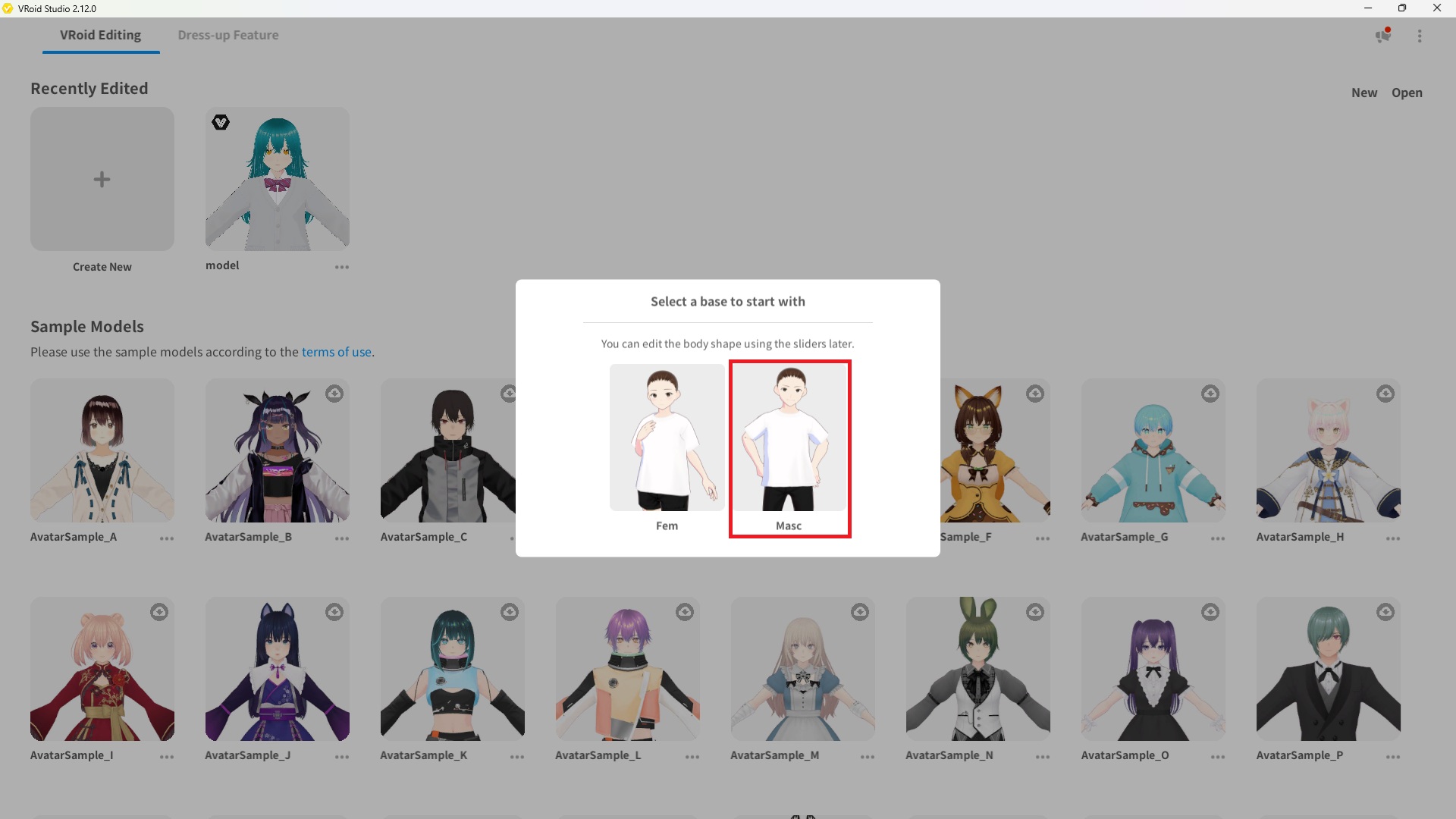
Tip: Even if you start from a female base by accident, you can still achieve a masculine look through the Face and Body sliders — but starting from the male base saves a lot of time.
Step 2: Shape the Face
The face is where male and female avatars differ most noticeably. Open the Face tab and adjust the following sliders to create a more masculine appearance:
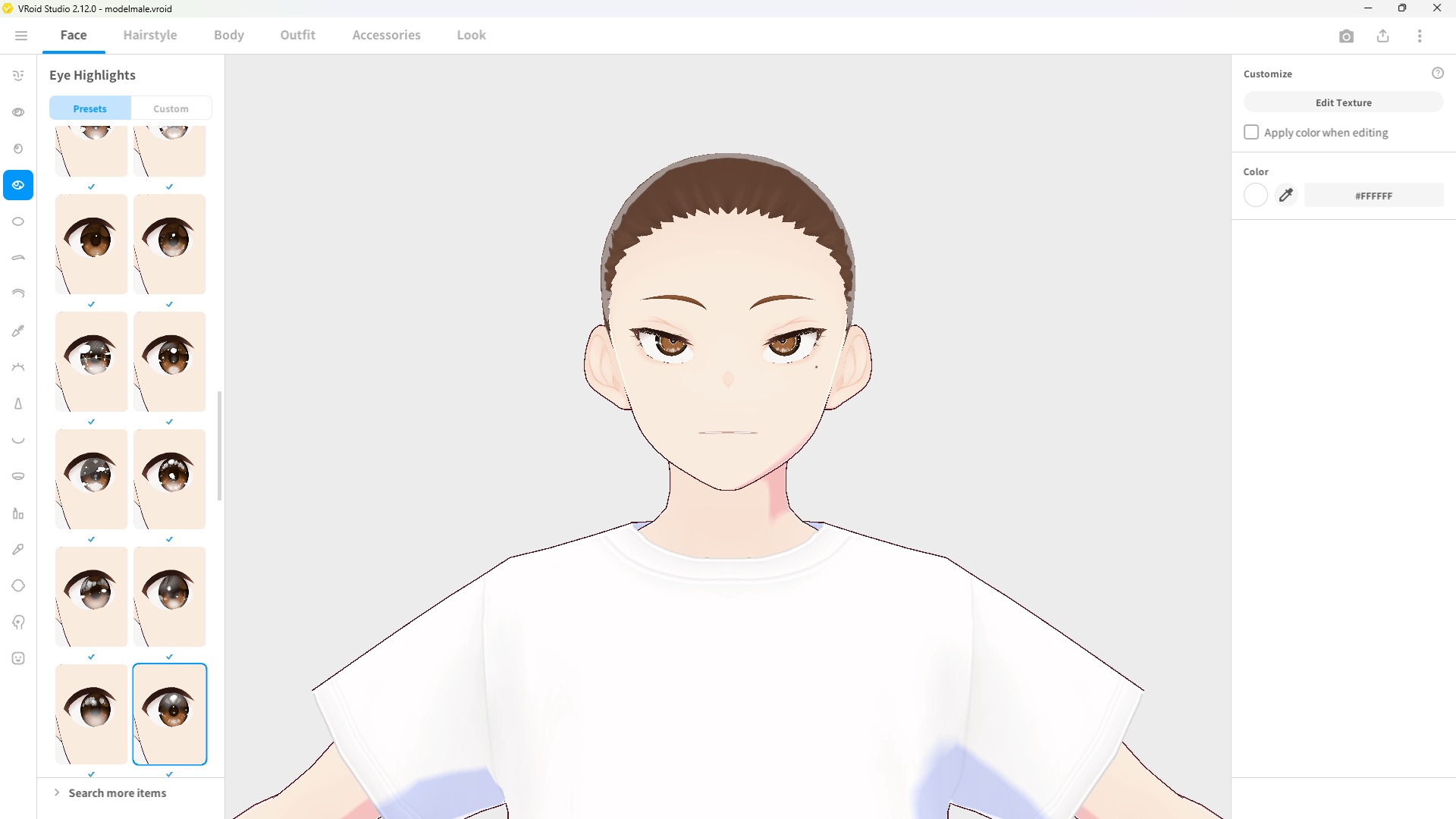
| Feature | Direction to Adjust | Effect |
|---|---|---|
| Face Width | Increase | Broader, squarer face shape |
| Jaw / Chin | Sharpen / square | More defined jawline |
| Eye Size | Decrease | Less anime, more mature look |
| Eye Angle | Tilt slightly downward | Sharper, more intense expression |
| Nose | Increase size slightly | More prominent, masculine nose |
| Mouth Width | Increase slightly | Fuller, more balanced lips |
| Eyebrow Thickness | Increase | Bolder, more masculine brows |
Tip: There’s no single “correct” male face — adjust to match the character style you’re going for, whether that’s a sharp-featured antagonist or a soft-featured bishounen.
Step 3: Choose a Hairstyle
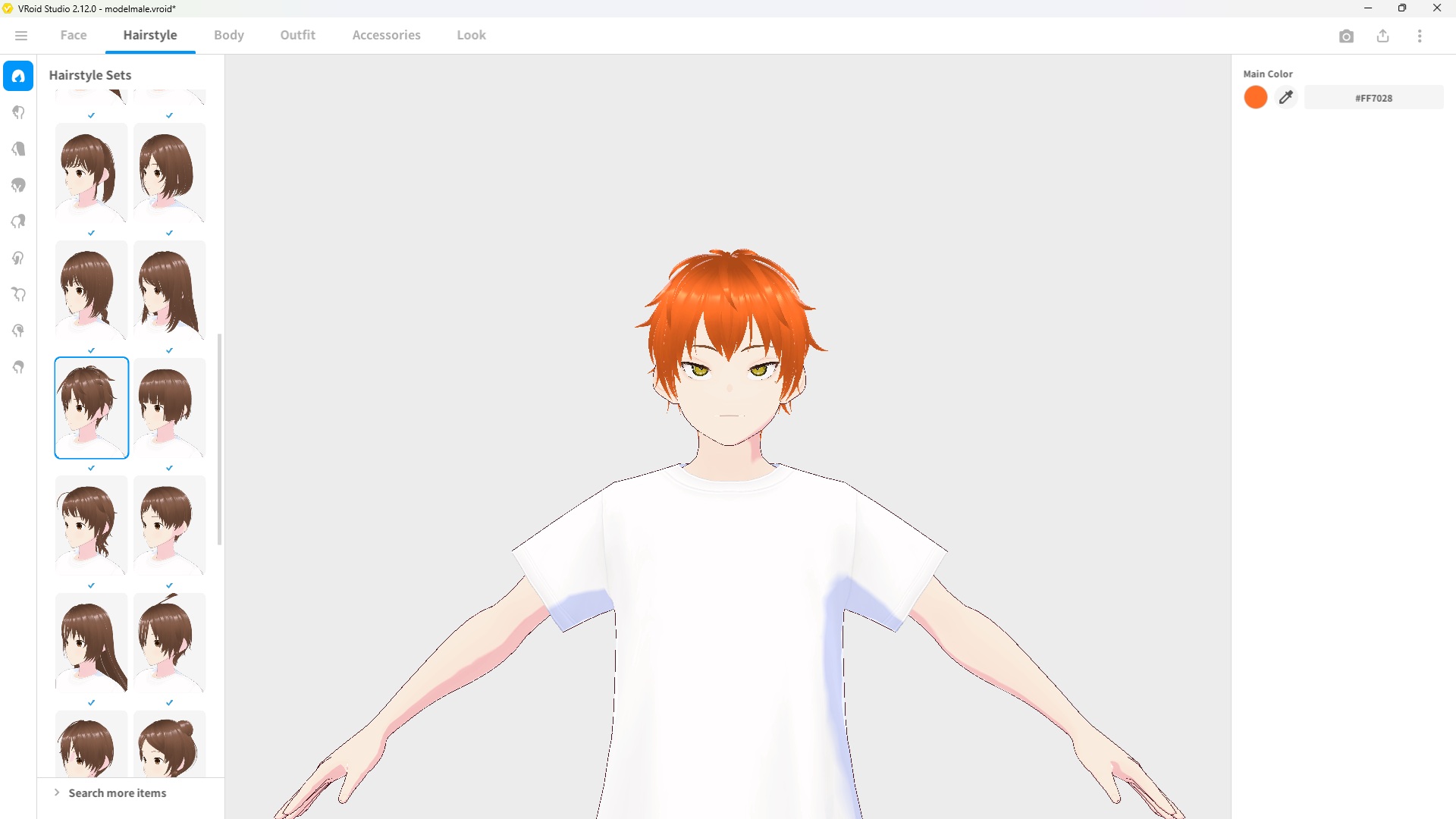
VRoid Studio’s hair presets include many styles that work well for male avatars — short cuts, undercuts, and slicked-back styles. Browse the Hairstyle tab and pick a preset that fits your character, or build a custom style from scratch.
For a natural masculine look, shorter hair with less volume tends to work best. You can reduce overall hair volume using the hair sliders after selecting a preset.
Step 4: Adjust the Body
Open the Body tab to fine-tune the physique. The male base already has adjusted proportions, but you can push them further:
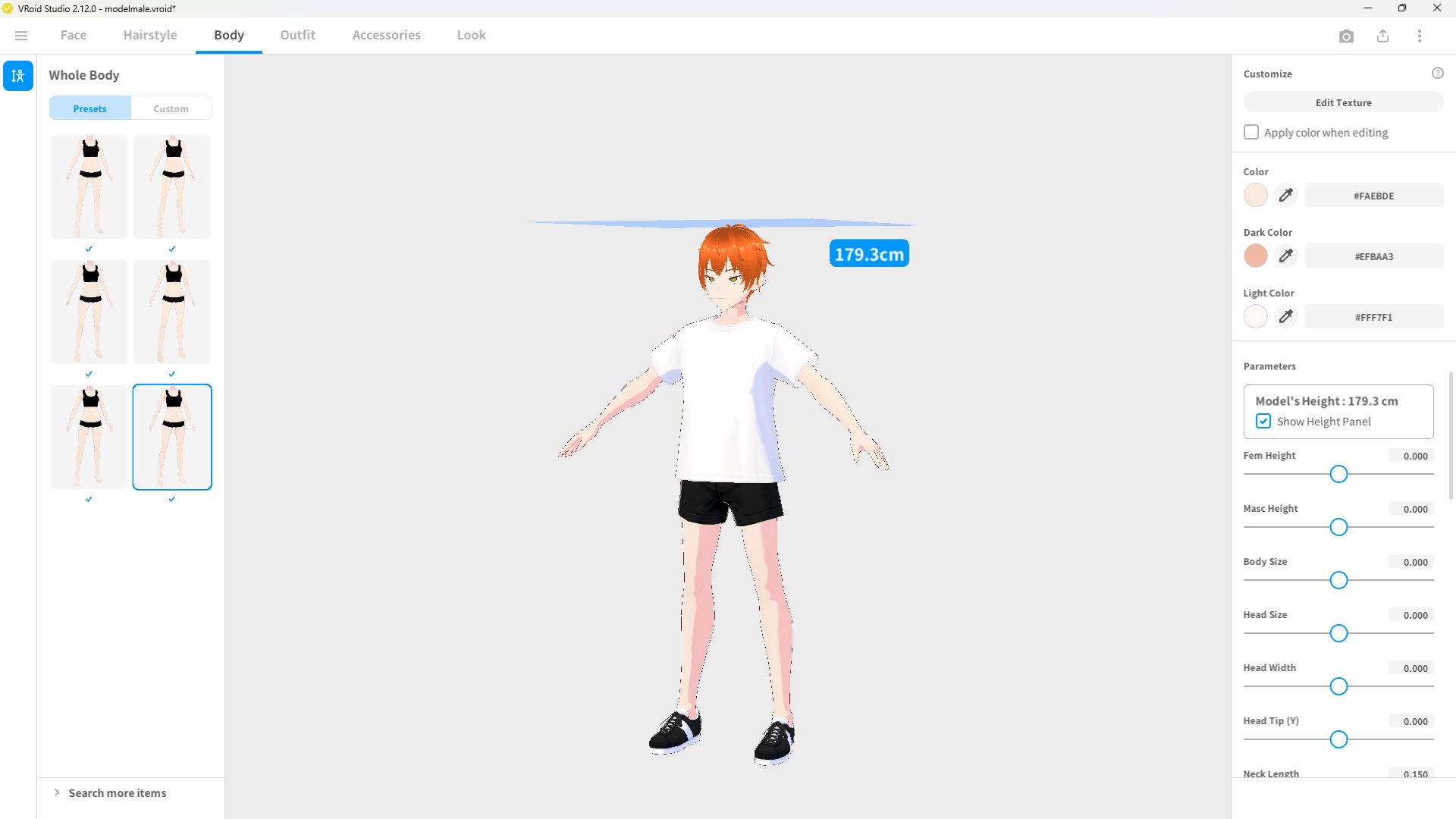
| Setting | Direction | Effect |
|---|---|---|
| Height | Increase | Taller overall frame |
| Shoulder Width | Increase | Broader, more masculine silhouette |
| Chest | Decrease | Flatter chest |
| Waist Width | Increase slightly | Less hourglass, more rectangular torso |
| Hip Width | Decrease | Narrower hips |
Step 5: Select Clothing
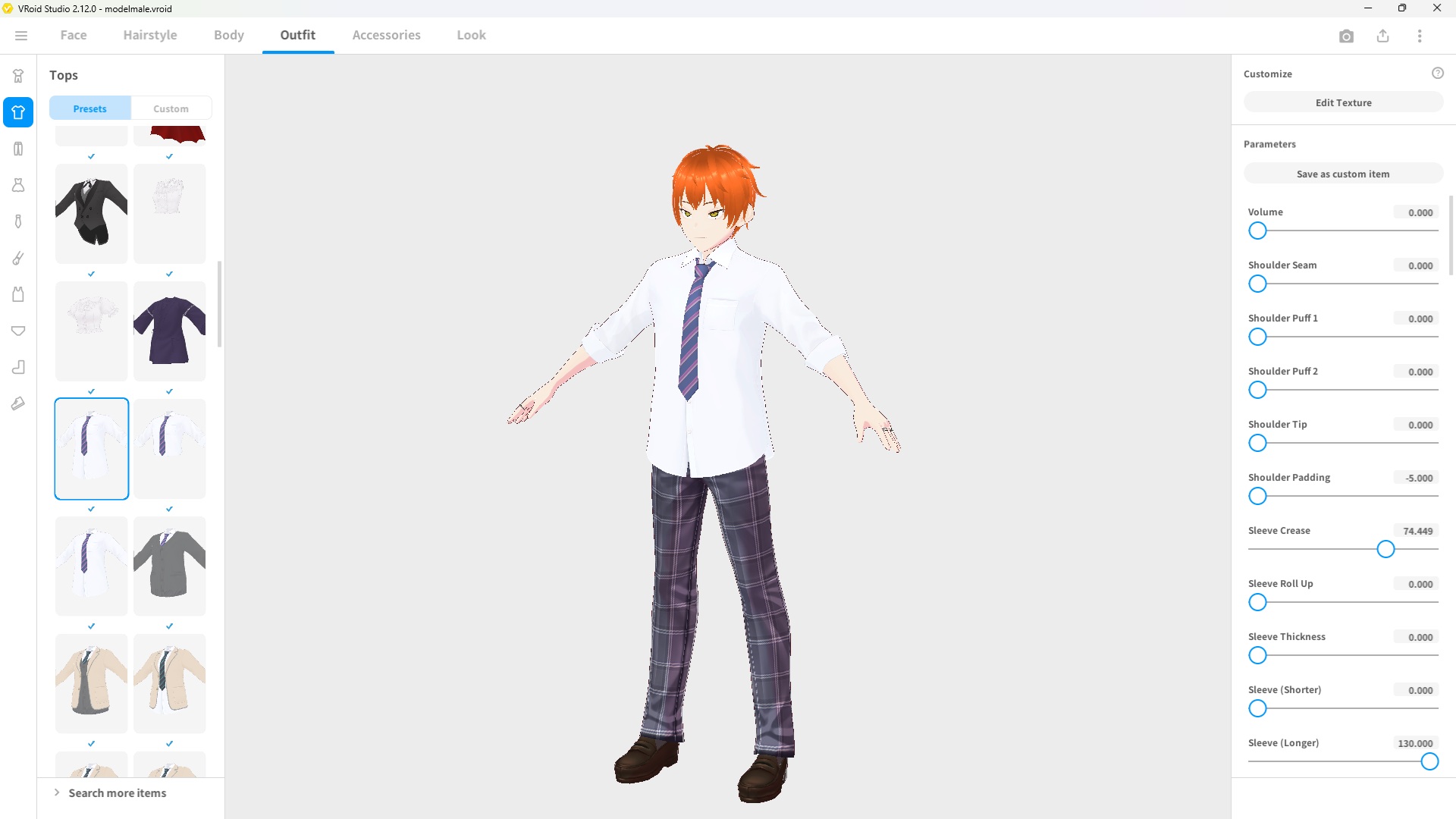
The Outfit tab includes clothing options suitable for male avatars — shirts, jackets, school uniforms, and more. The male base model uses male-appropriate clothing by default when you select outfits from the preset list.
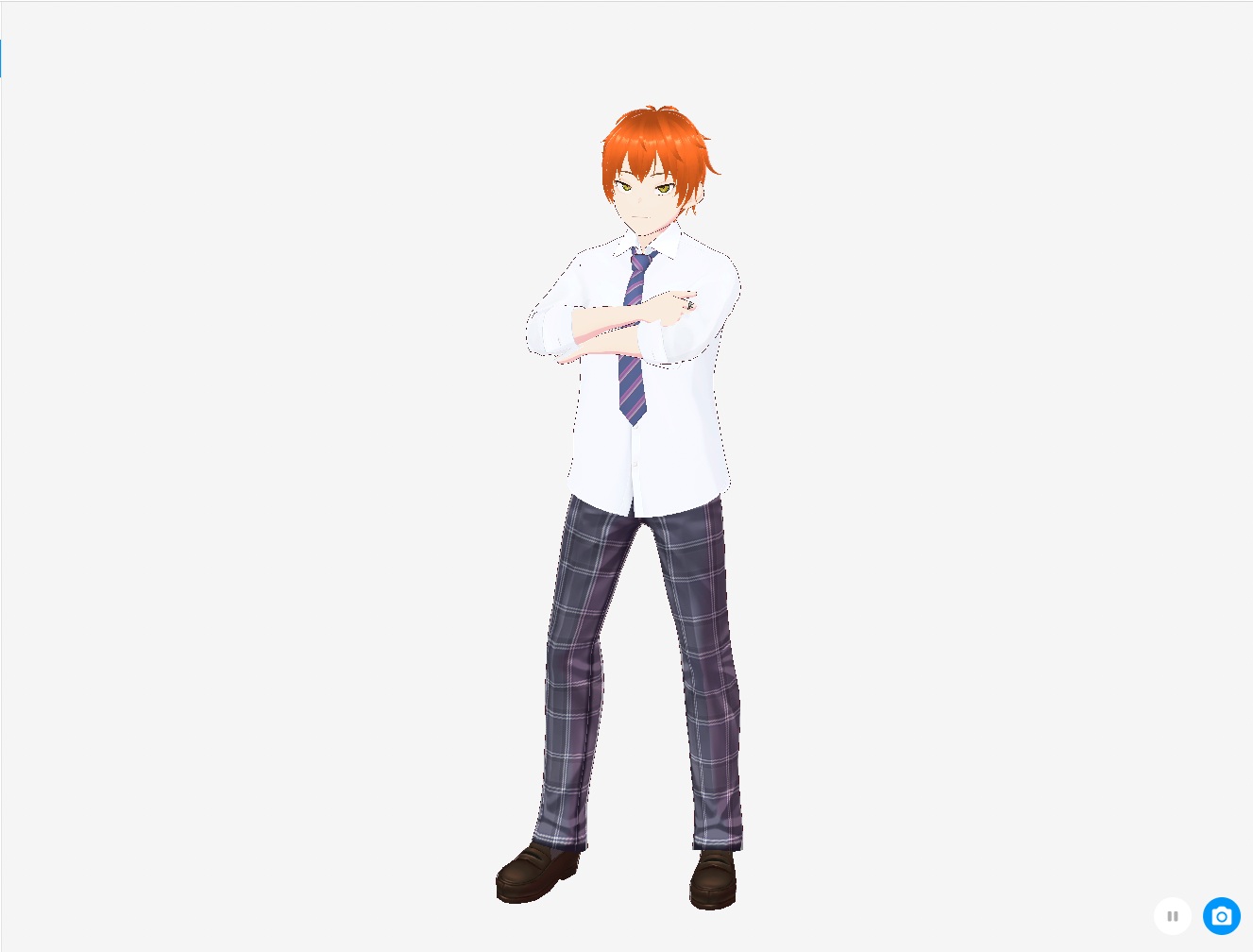
Final Result
Frequently Asked Questions
Can I create a male avatar starting from a female base?
Yes. You can adjust the face and body sliders to achieve a masculine look regardless of which base you start from. However, starting from the male base is much faster since the proportions are already closer to what you need.
Can male avatars use the same clothing as female avatars?
Clothing in VRoid Studio is shared across base types, but some outfits are designed with feminine proportions in mind and may not fit a male body shape naturally. Stick to outfits that look appropriate on the male base, or use the texture editor to customize the fit.
Is it possible to add facial hair in VRoid Studio?
VRoid Studio does not have a built-in facial hair feature. However, you can simulate stubble or a beard by painting directly onto the face texture in the Texture Editor.
Can I use a male VRoid avatar in VRChat?
Yes. Male VRoid avatars export as standard VRM files and can be uploaded to VRChat just like any other VRoid model. The process is the same regardless of the avatar’s gender.
What’s Next?
- [How to Edit Face Shape in VRoid Studio] — A deeper look at all the face sliders
- [How to Export Your VRoid Model as a VRM File] — Get your male avatar ready for VRChat and other platforms
Final Thoughts
Creating a male avatar in VRoid Studio takes a bit more manual adjustment than the default female workflow, but the results are well worth it. The key areas to focus on are the face shape, jaw, eye size, and shoulder width — get those right and the rest falls into place naturally. Start with the male base, work through the face and body sliders methodically, and you’ll have a solid male character ready to export in no time.